¶ Overview
Enterprise Search is an advanced, AI-powered search functionality. It leverages Natural Language Processing (NLP) and deep learning technologies to provide accurate, context-aware results from your organization's data. This feature is designed to enhance information discovery, improve productivity, and ensure secure access to enterprise knowledge.
¶ 1. Key capabilities include
AI-powered Natural language query processing
Multi-lingual support
Near real-time indexing
Role-based access control (RBAC)
Search history management
¶ 2. Search Functionality
2.1 Initiating a Search
2.1.1 Text-based Search
Location: The search bar is prominently displayed on the home page.
How to :
- Enter your query into the search bar.
- Press Enter or click the search button to initiate the search.
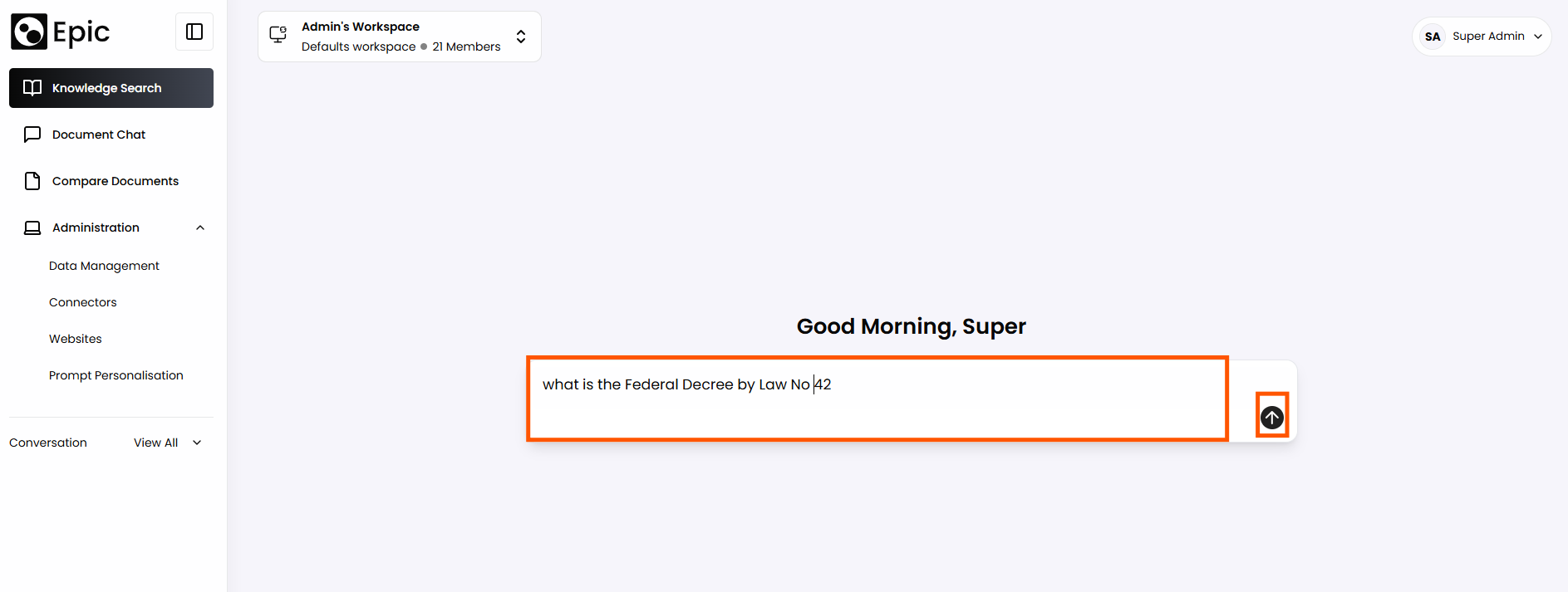
Query Type: The system supports natural language queries, allowing users to ask questions or describe their information needs in a conversational manner.
Technology: Advanced NLP techniques and deep learning models are employed to interpret queries and generate accurate responses.
2.2 Search Results
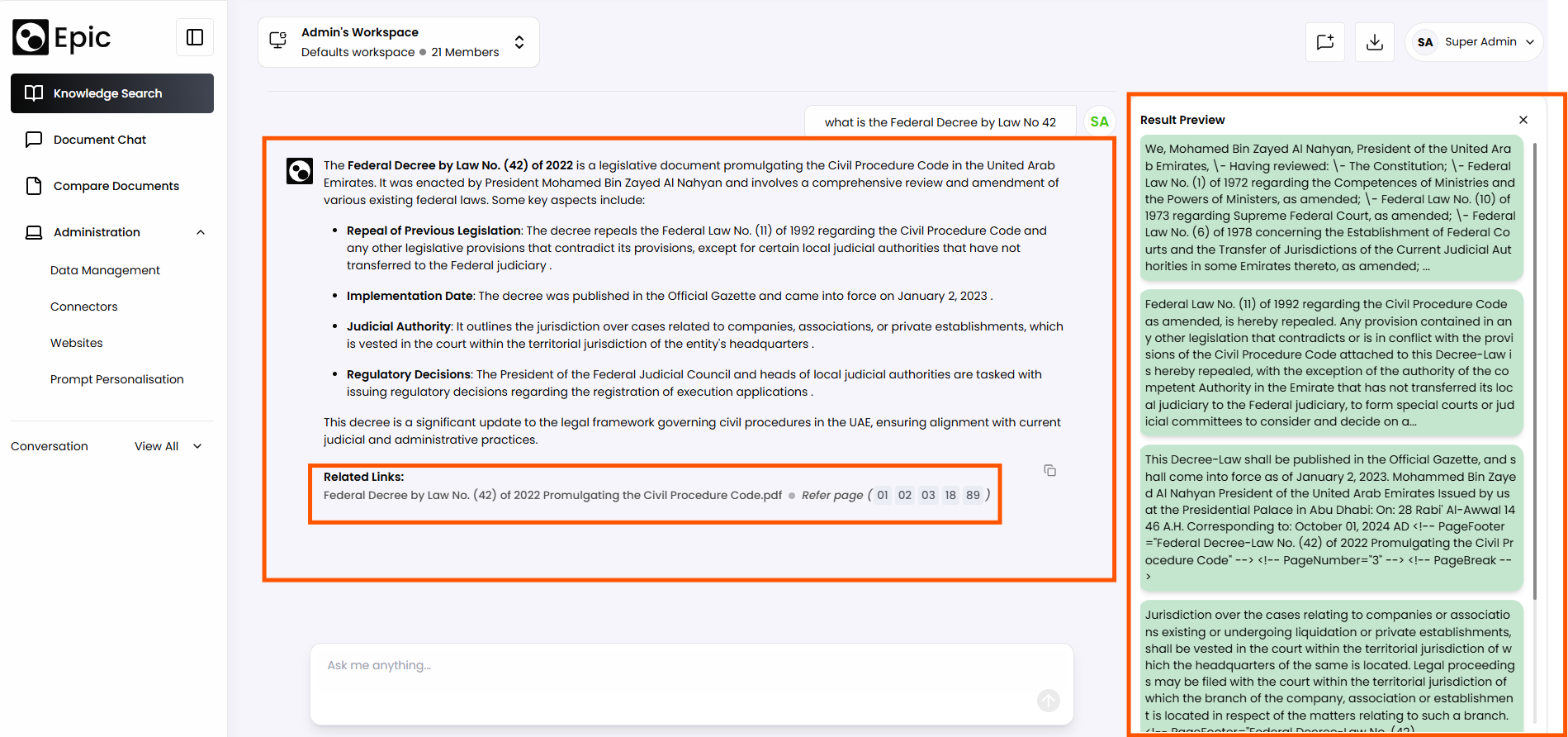
Display Format: Results are presented in a chat-like interface.
Content:
- Succinct answers generated by the Language Model (LLM)
- Source preview
- Relevant citations, links to source documents
- Accuracy: Contextually relevant answers based on the enterprise's data.
2.3 Sharing Search Results
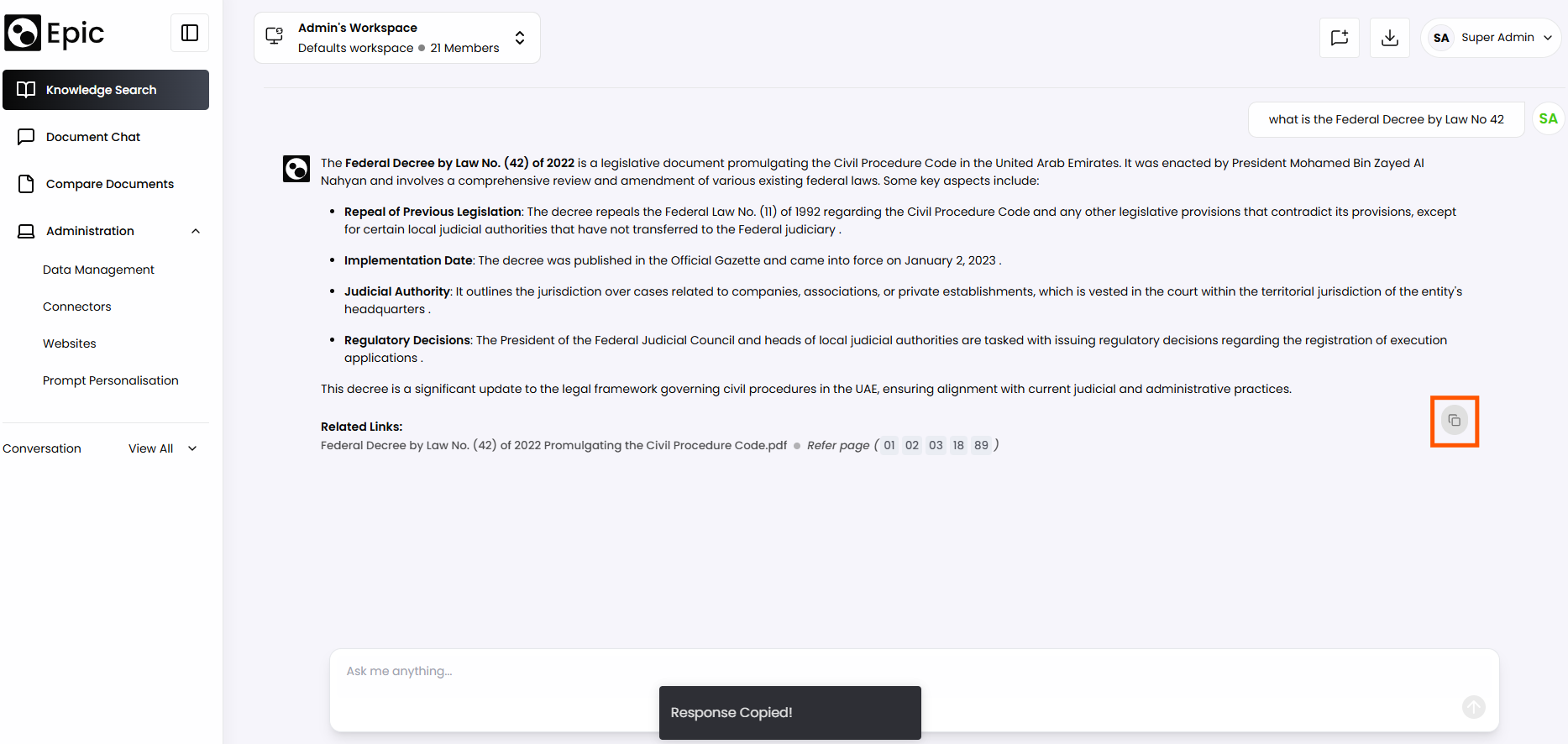
Method: Copy and paste functionality
How to:
- Select the desired response text.
- Copy the selected text to the clipboard.
- Paste the content into the desired communication tool (e.g., email, chat application).
Note: Ensure compliance with your organization's data-sharing policies when sharing search results.
2.4 Exploring Trending Topics
Location: A dedicated section on the landing page displays popular queries.
Usage: Click on any query in this section to initiate a search on that topic.
Benefits: Helps users discover relevant, frequently accessed information within the organization.
3. Security and Access Control
3.1 Enterprise-grade Security
Implementation: The search system employs robust security measures to protect query data and search results.
Data Protection: All data transmissions are encrypted to ensure confidentiality and the data is not used to train the AI model.
3.2 Role-Based Access Control (RBAC)
RBAC is implemented at both the tool level and integrates with data source level.
Tool-level RBAC:
- Manages user access to different features and functionalities within the search tool.
- Configured by system administrators based on organizational roles and responsibilities.
Data Source-level RBAC:
- Integrates with various existing various data sources, where the administrators can authorise and enforce permissions on a specific folder (or files) to be accessed.
- Ensures users only access information relevant to their assigned roles and permissions.
Result: Users only see search results and document content they are authorized to access.
4. Search Query Limitations
4.1 Trial Users
- Allocation: 50 queries credited upon account creation.
- Restriction: Once the allocated queries are exhausted, the user must upgrade to a paid plan for continued access.
4.2 Paid Users
- Allocation: Query quota based on the subscription plan.
- Monitoring: Users can track their query usage through the account dashboard.
- Upgrade Options: Available for users requiring additional queries.
5. Advanced Data Handling
5.1 Tabular and Graphical Data Interpretation (Coming Soon)
- Capability: The system will be able to process and respond to queries about data presented in tables or graphs within documents.
- Response Format: Answers will include relevant information extracted from these structured data formats.
- Use Cases: Ideal for financial reports, statistical analyses, and data-rich documents.
6. Search History Management
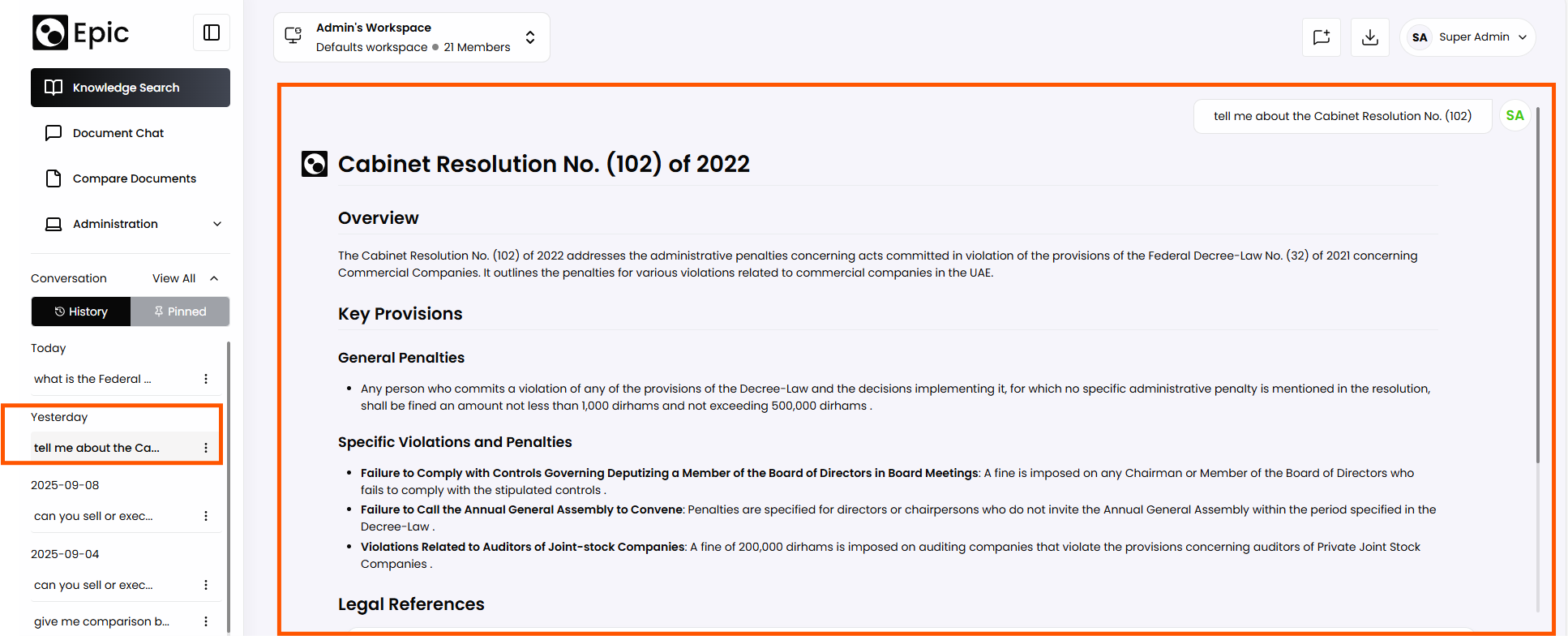
6.1 Accessing Chat History
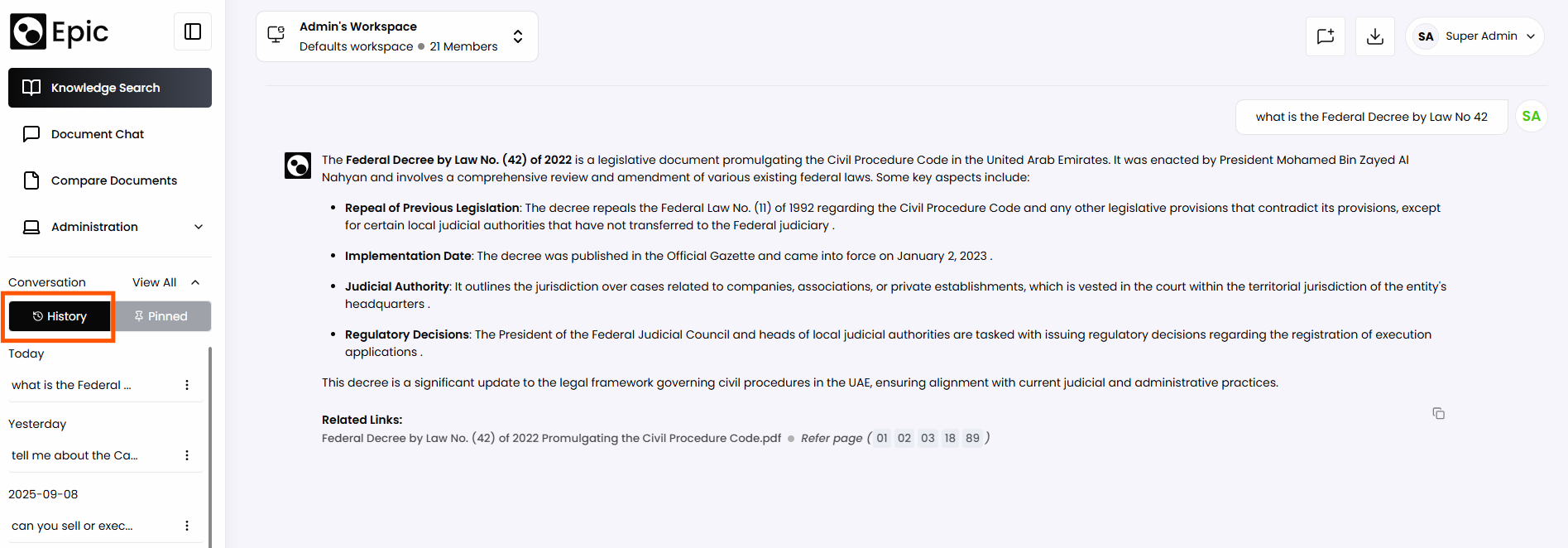
Location: Left menu of the search page
Contents: Displays a list of previous conversations and search interactions
6.2 Interacting with Chat History
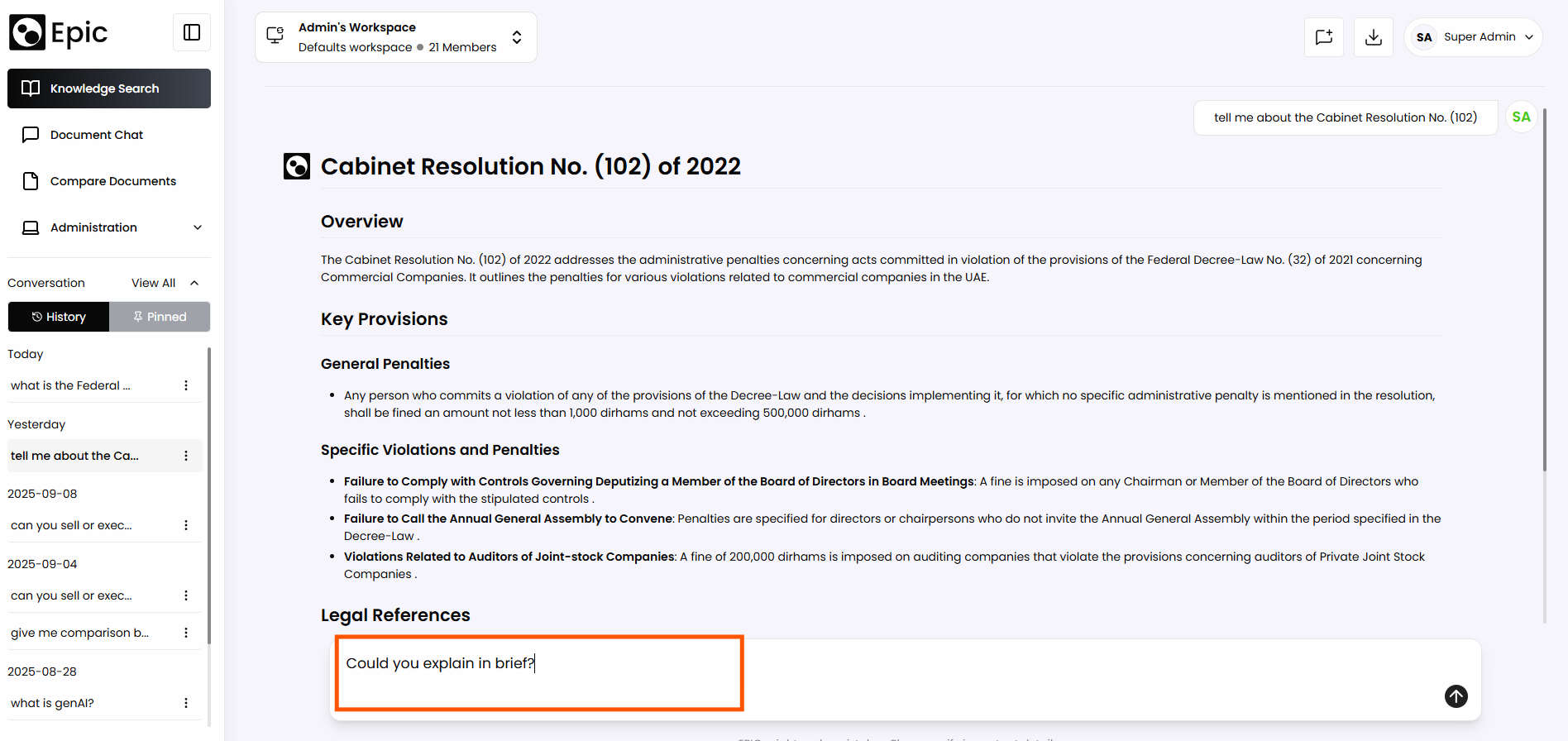
Viewing: Click on a specific conversation to review the entire chat session.
Continuing: Users can resume a previous conversation by selecting it and adding new queries.
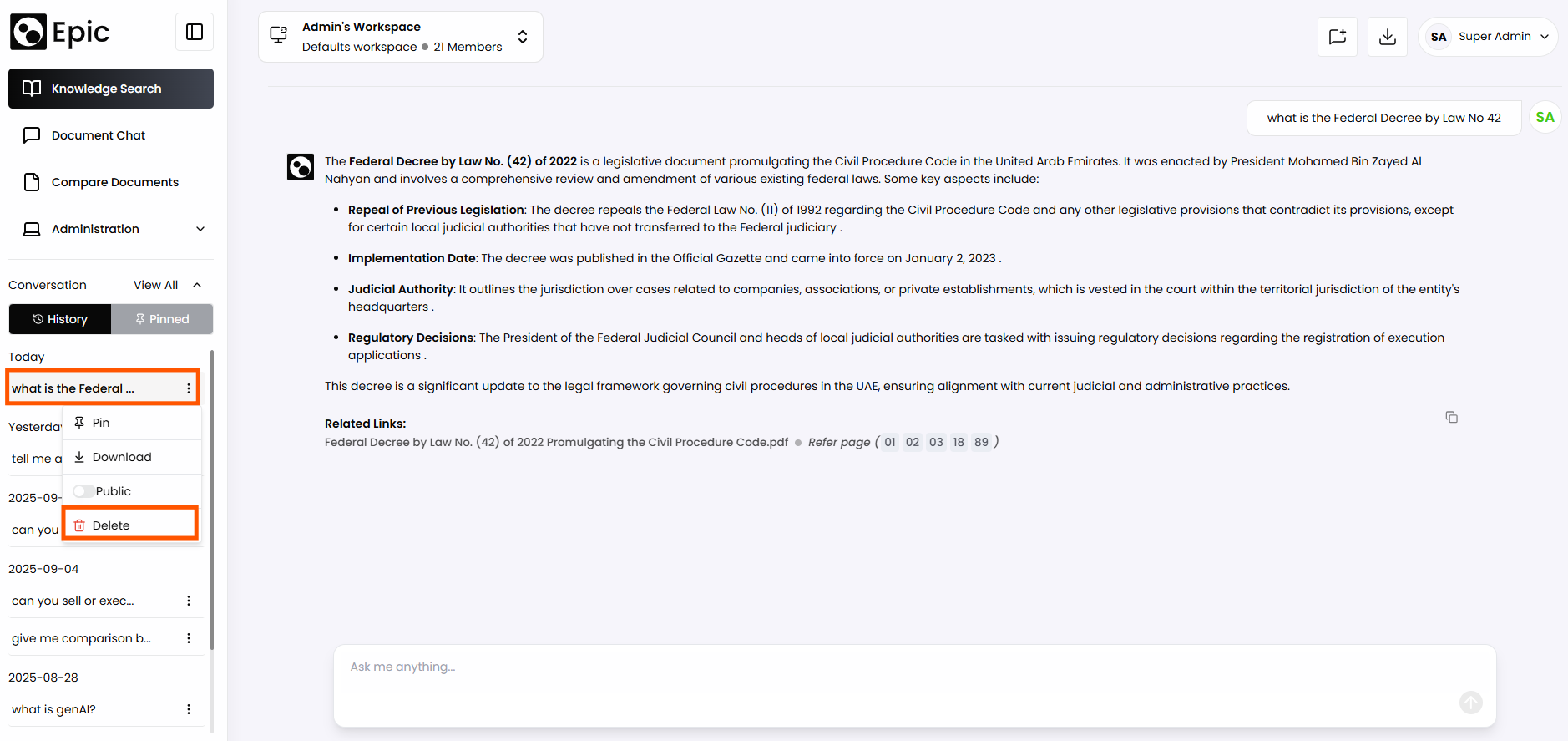
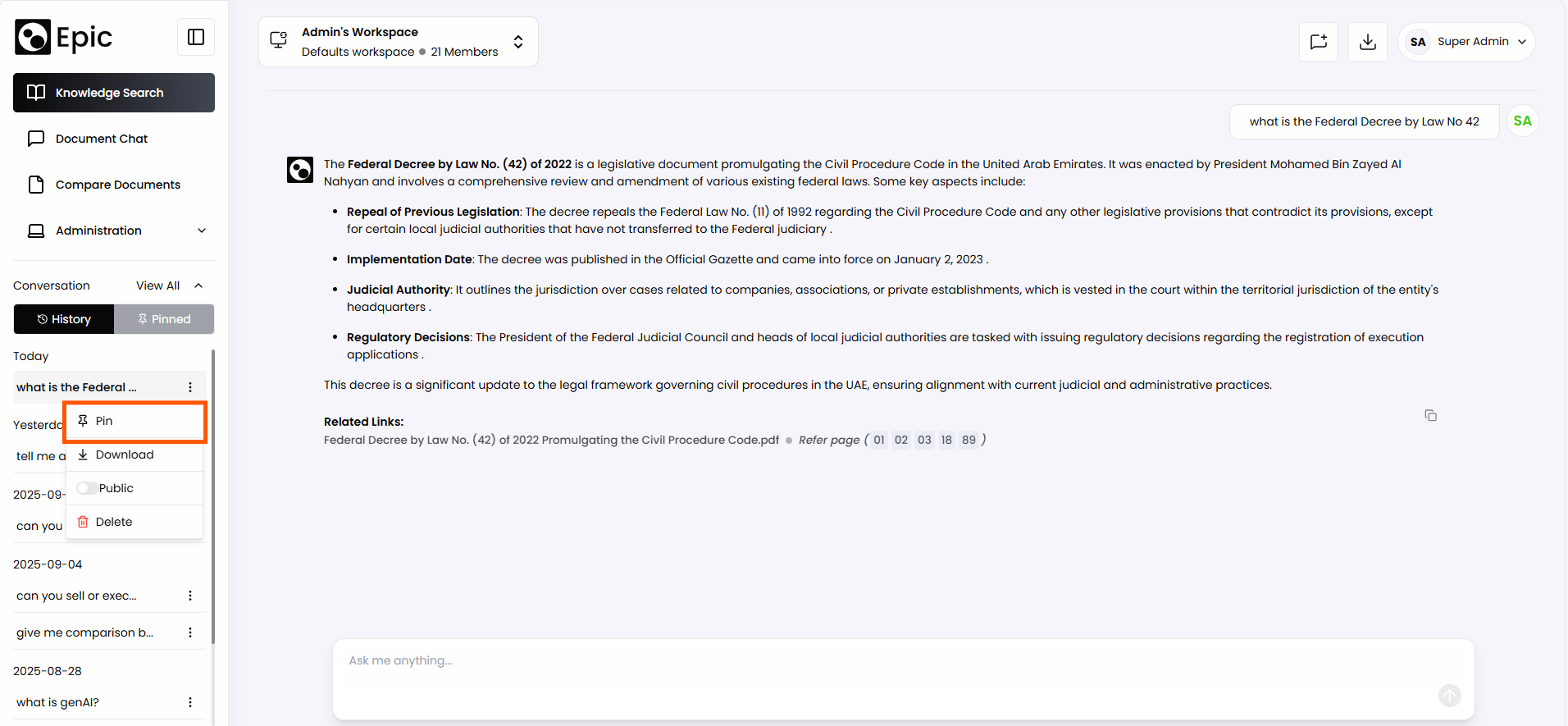
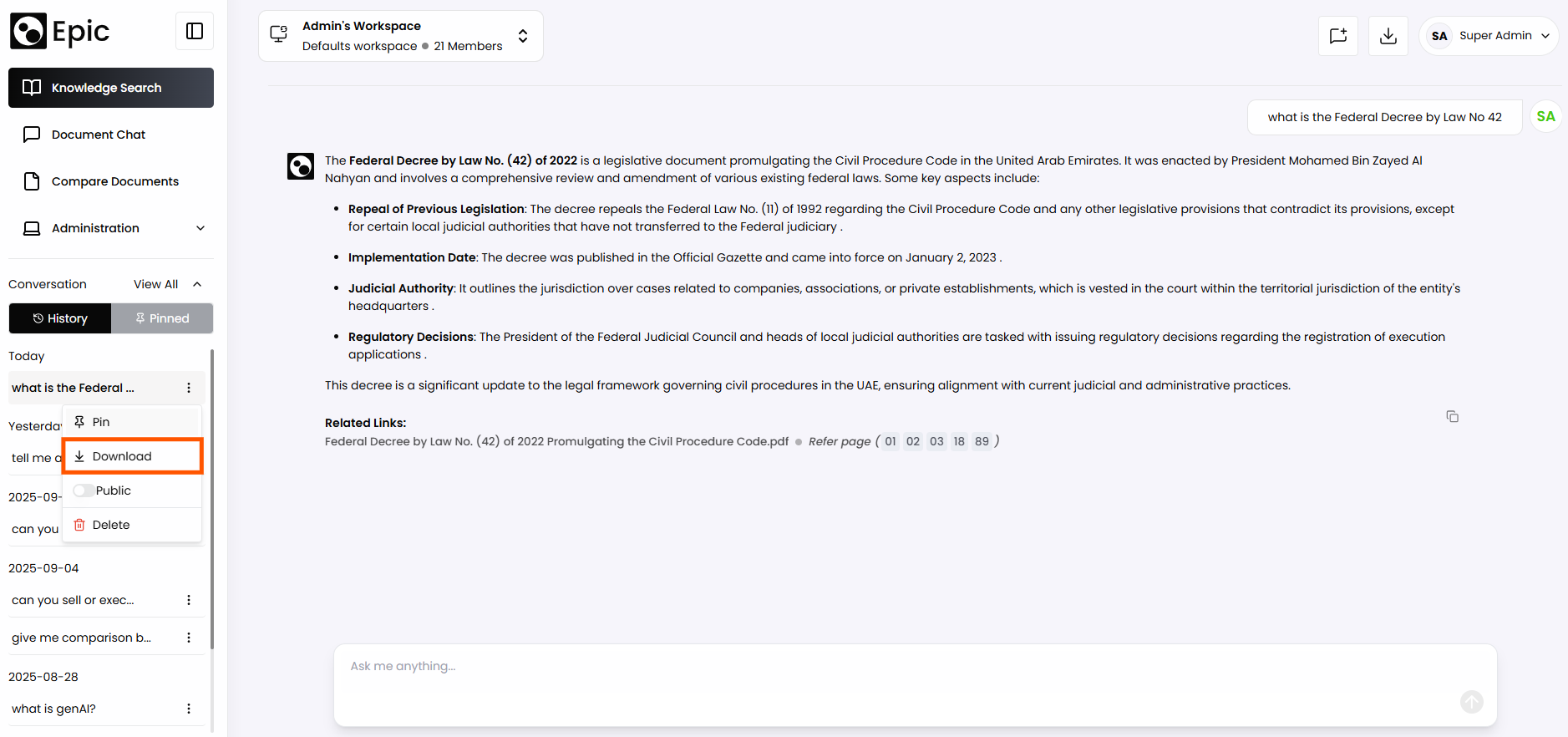
Deleting: Remove individual chat entries by clicking the "Delete" option.
Pinning: Preserve essential conversations by selecting the "Pin" option, which moves them to the Pinned tab for prioritized access and quick retrieval.
Downloading: Export conversations by selecting the "Download" option, which saves the conversation as a .pdf file for offline access and record-keeping.
6.3 Organizing Chat History
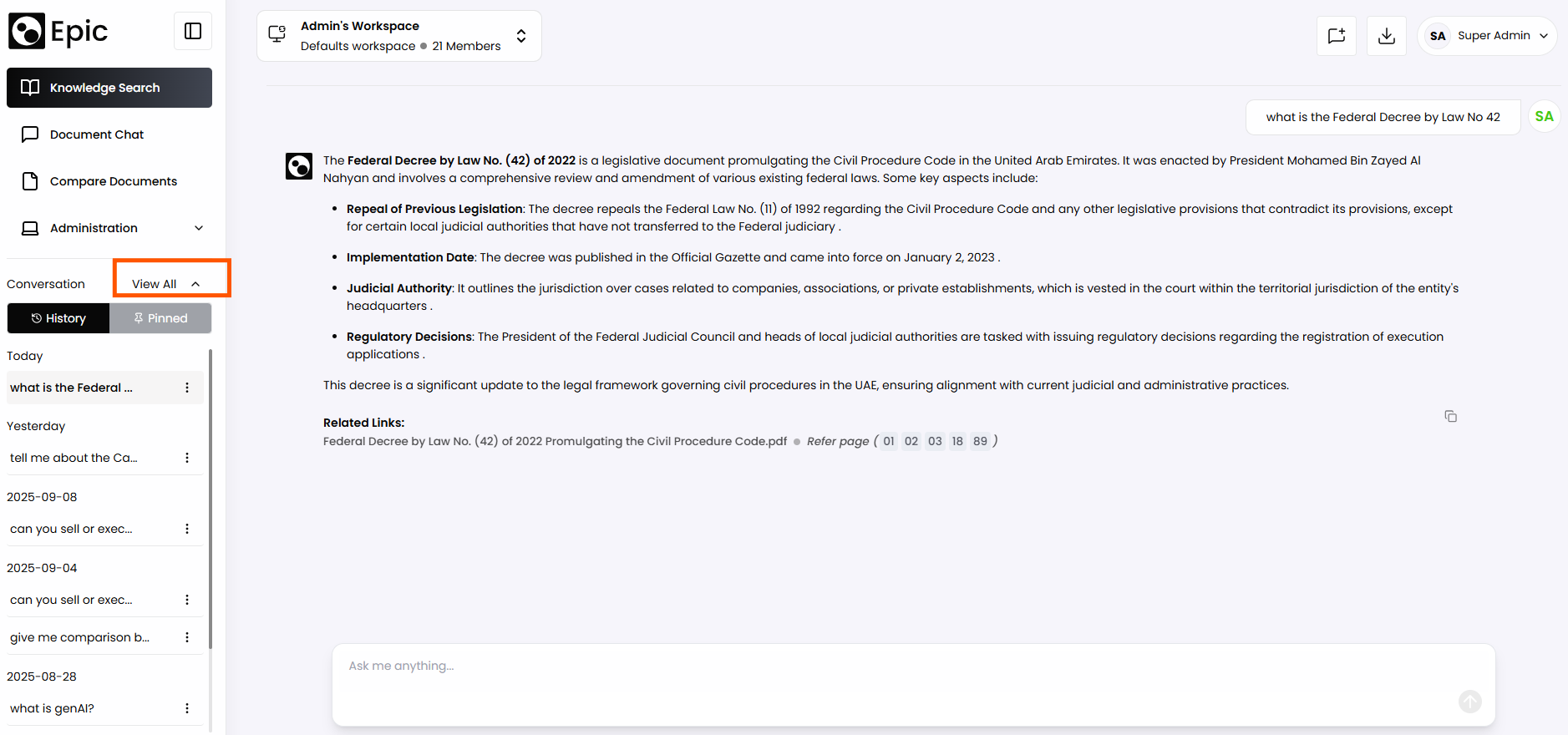
Predefined Intervals: Access history from specific time periods:
- Today
- Yesterday
- This week
- Last week
- This month
- Last month
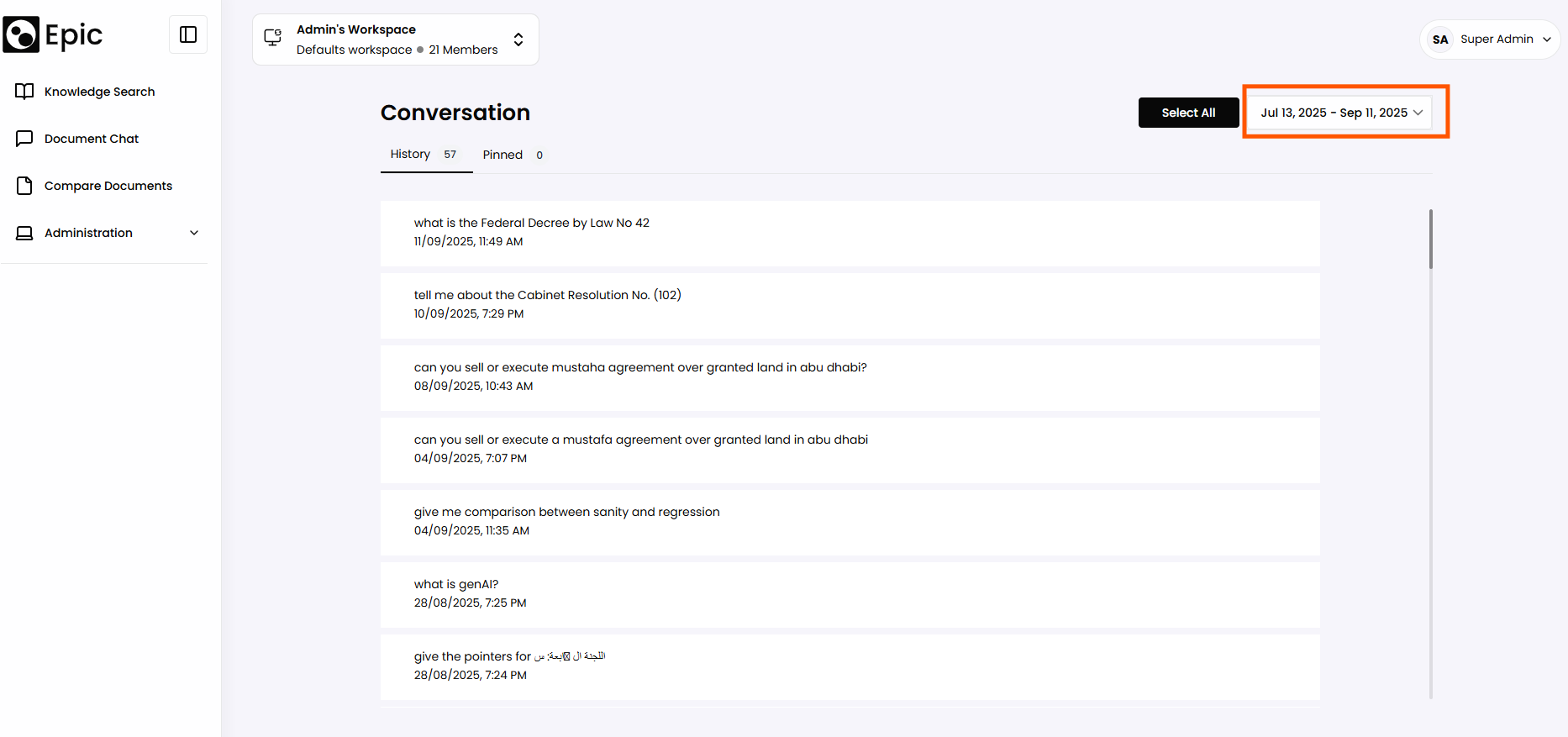
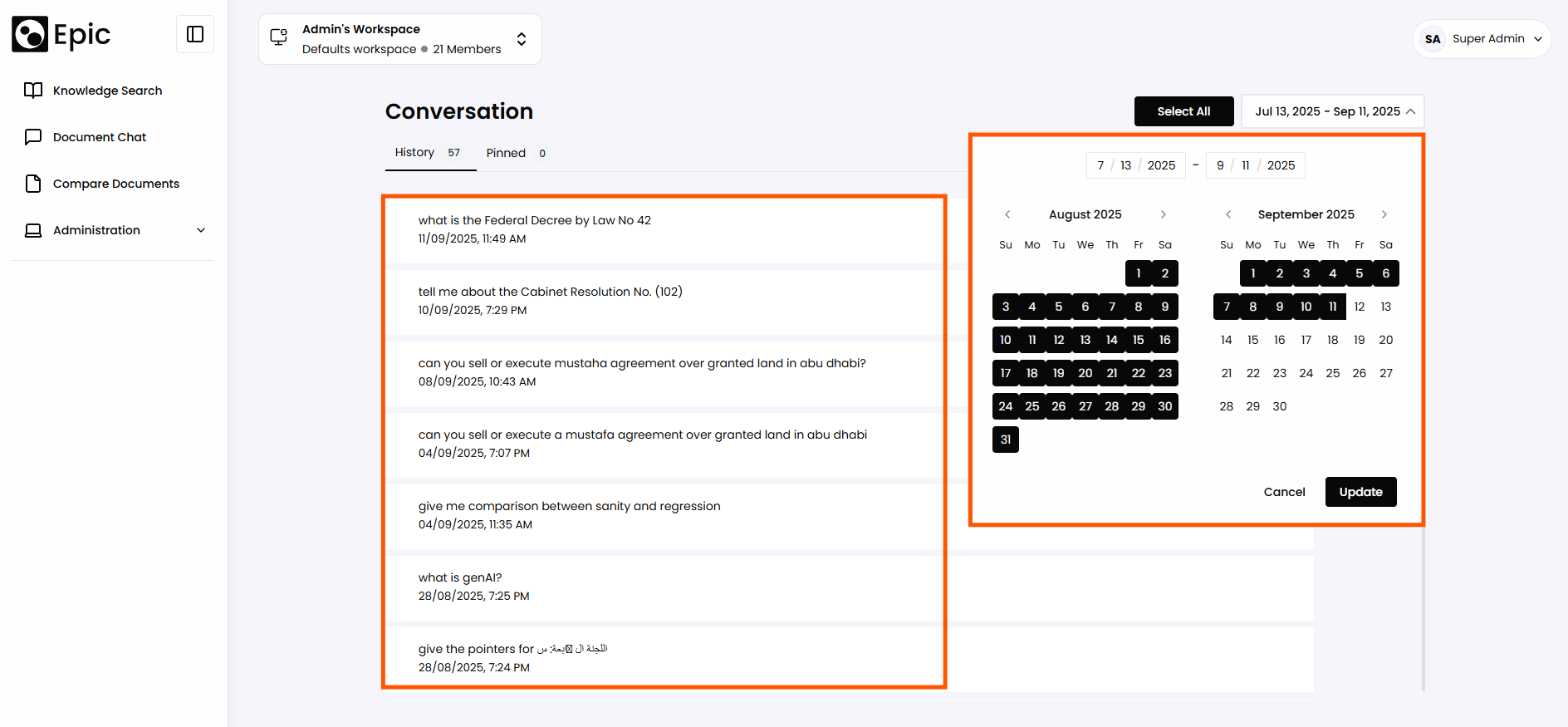
Search by custom date range:
Select the date range from the calendar icon to the left to retrieve only the desired conversations from the past
7. Document Management and Indexing
7.1 Near Real-time Indexing
Process: Automatic synchronization of newly added or updated documents in the data source with the search engine.
Timing: Updates are reflected in search results almost immediately after changes occur in the data source.
Benefit: Ensures users always have access to the most up-to-date information.
8. Multi-lingual Support
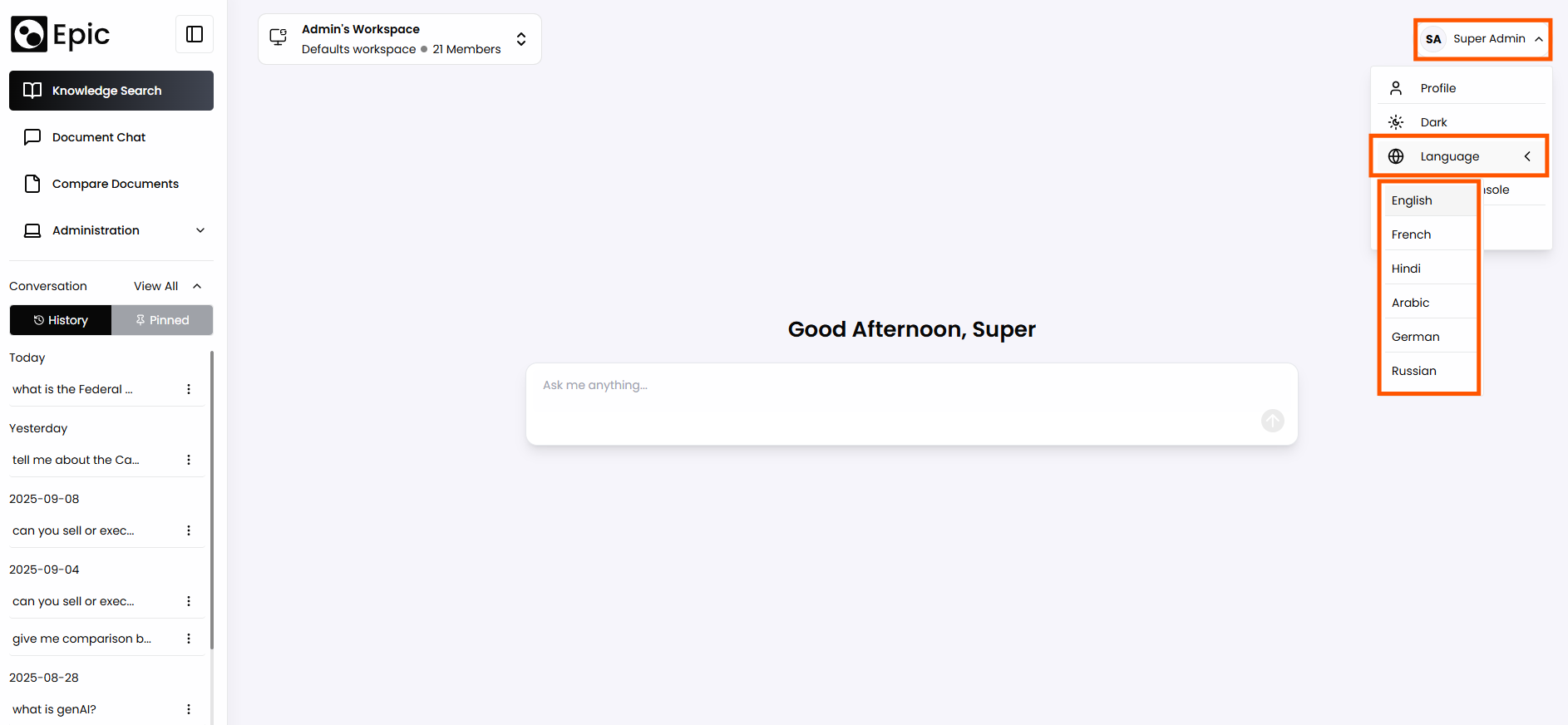
8.1 Language Selection
Available Languages:
- English
- French
- Hindi
- Arabic
- German
- Russian
Selection: Users can choose their preferred language from the main home page.
8.2 Real-time Translation
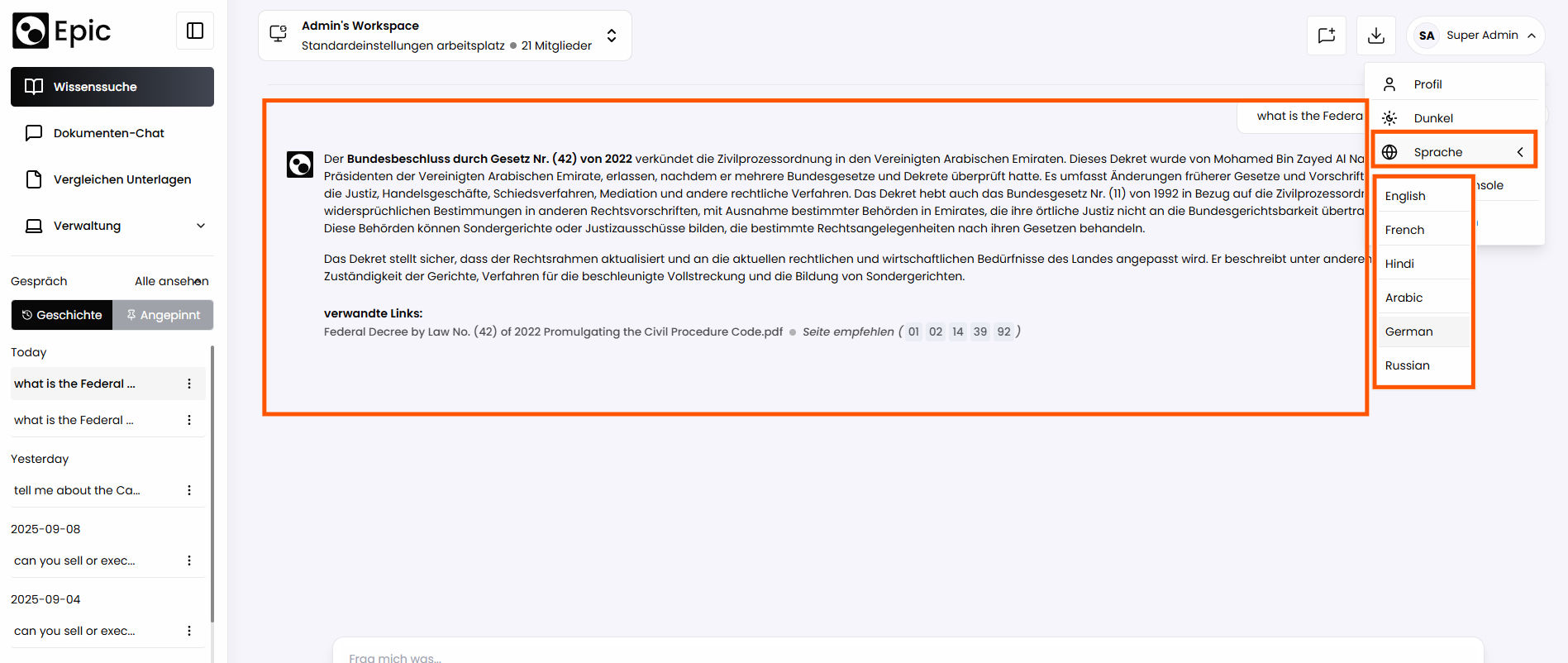
Functionality: Search responses can be generated in the user's preferred language.
How to:
- User inputs a query in any supported language.
- The system processes the query and retrieves relevant information.
- Before displaying the result, the system translates the response into the user's selected language.
Benefit: Enables a multilingual workforce to access and understand enterprise information efficiently.
9. Troubleshooting and Support
9.1 Common Issues
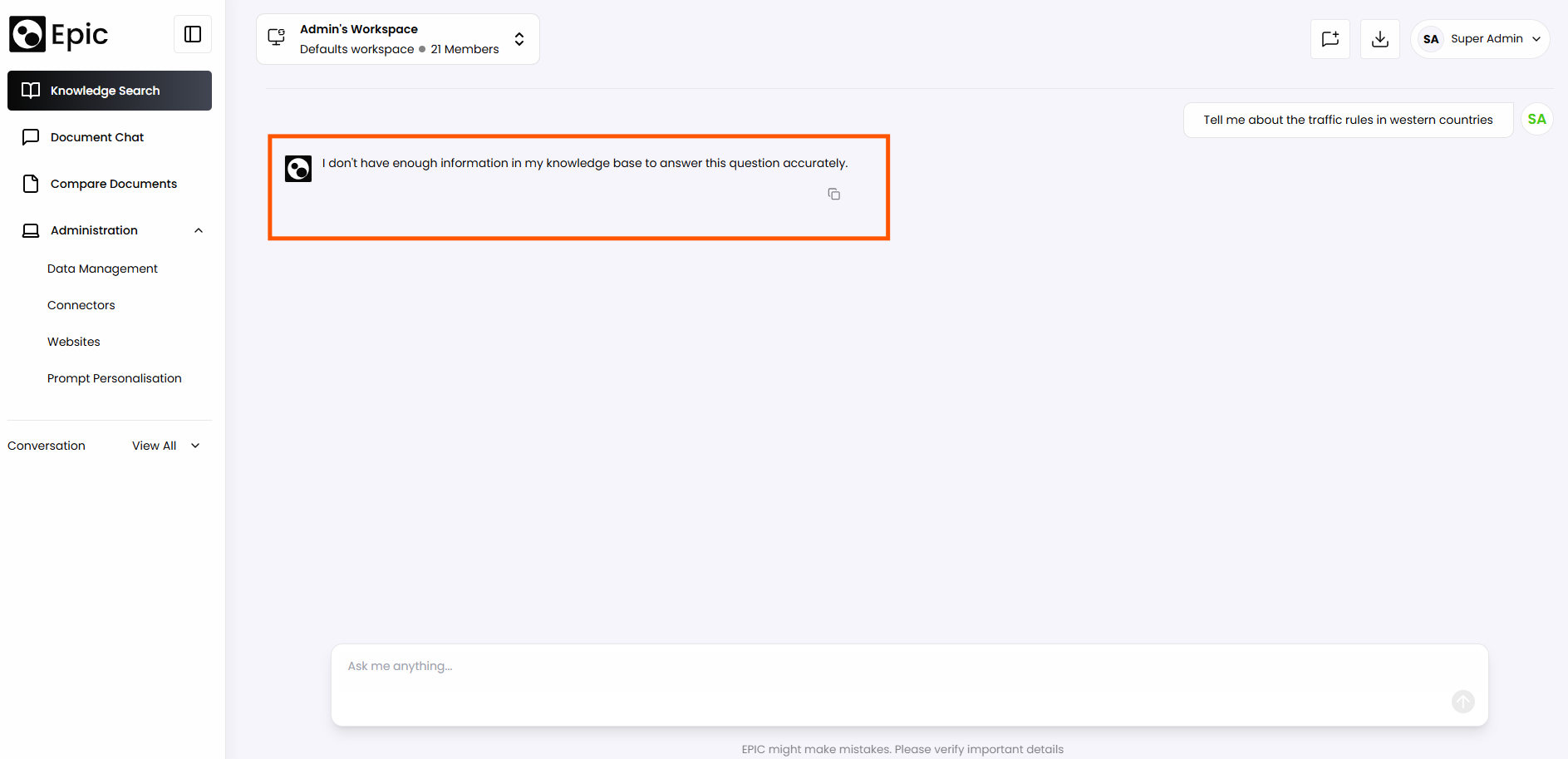
Search not returning expected results:
Check if you have the document related to the query.
10. Future Enhancements
- Advanced analytics dashboard for search usage patterns
- Integration with additional enterprise data sources
- Expanded language support