
¶ Overview
The Connectors feature in Epic enables seamless integration with various external systems and data sources. This functionality allows users to connect, synchronise, and manage external resources efficiently, streamlining workflows and enhancing data accessibility.
¶ Accessing Connectors
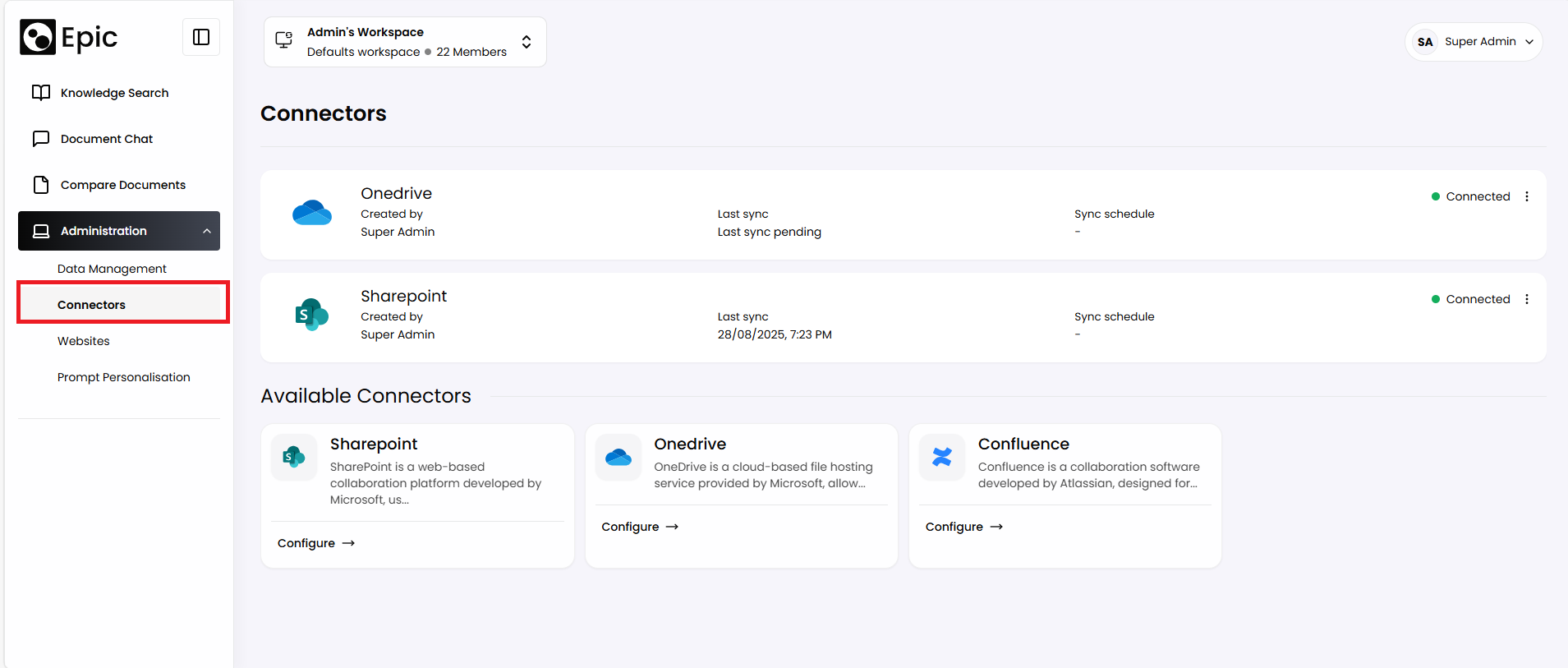
- Log in to your Epic account.
- Navigate to the Administration section in the left-side menu.
- Click the Connectors option to view and manage available connectors.
¶ Features & Functionality
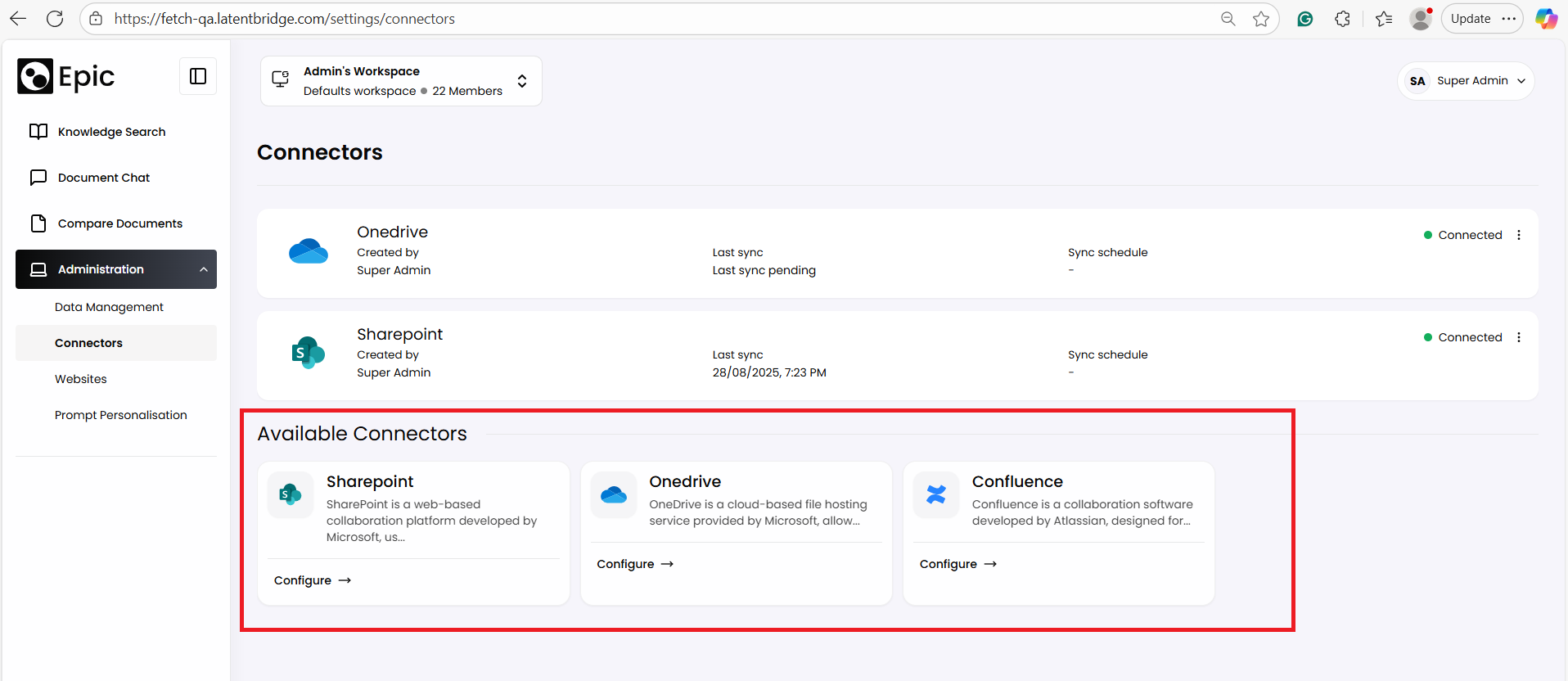
1. Available Connectors
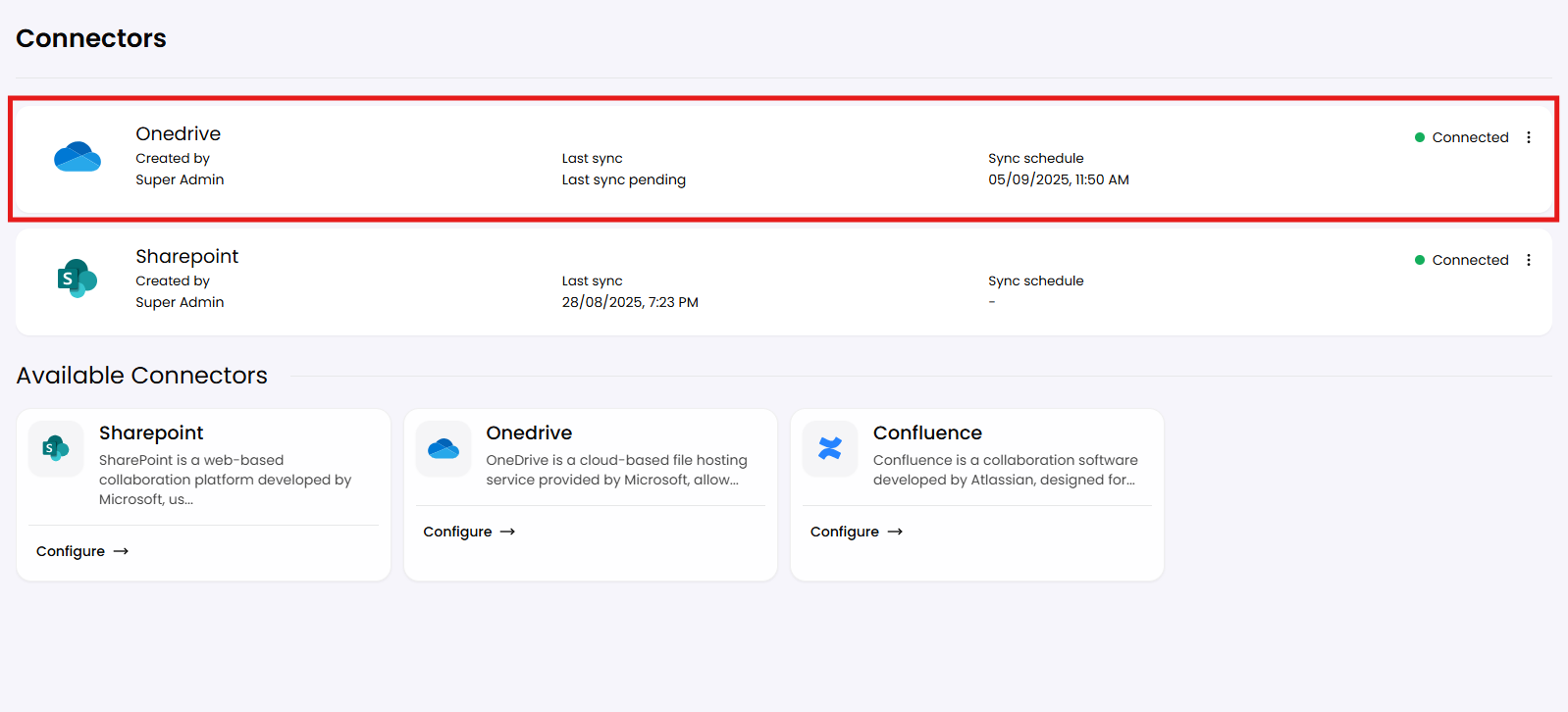
The Connectors dashboard displays all integrations that Epic supports. These connectors can be configured to synchronise data between Epic and external platforms.
2. Configuring Connectors
- Users can securely and efficiently connect to external platforms using connectors.
Steps to Configure a Connector
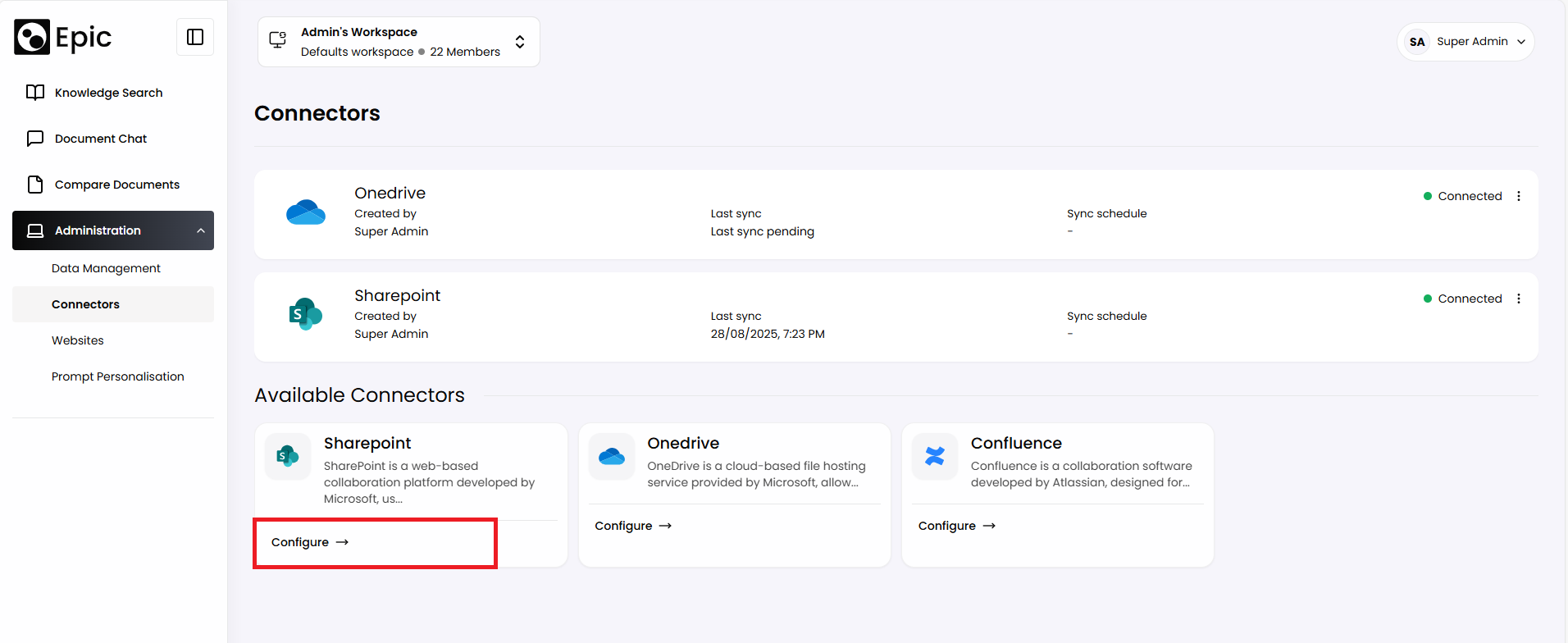
- Navigate to the desired connector on the dashboard.
- Click the Configure button to open the configuration settings.
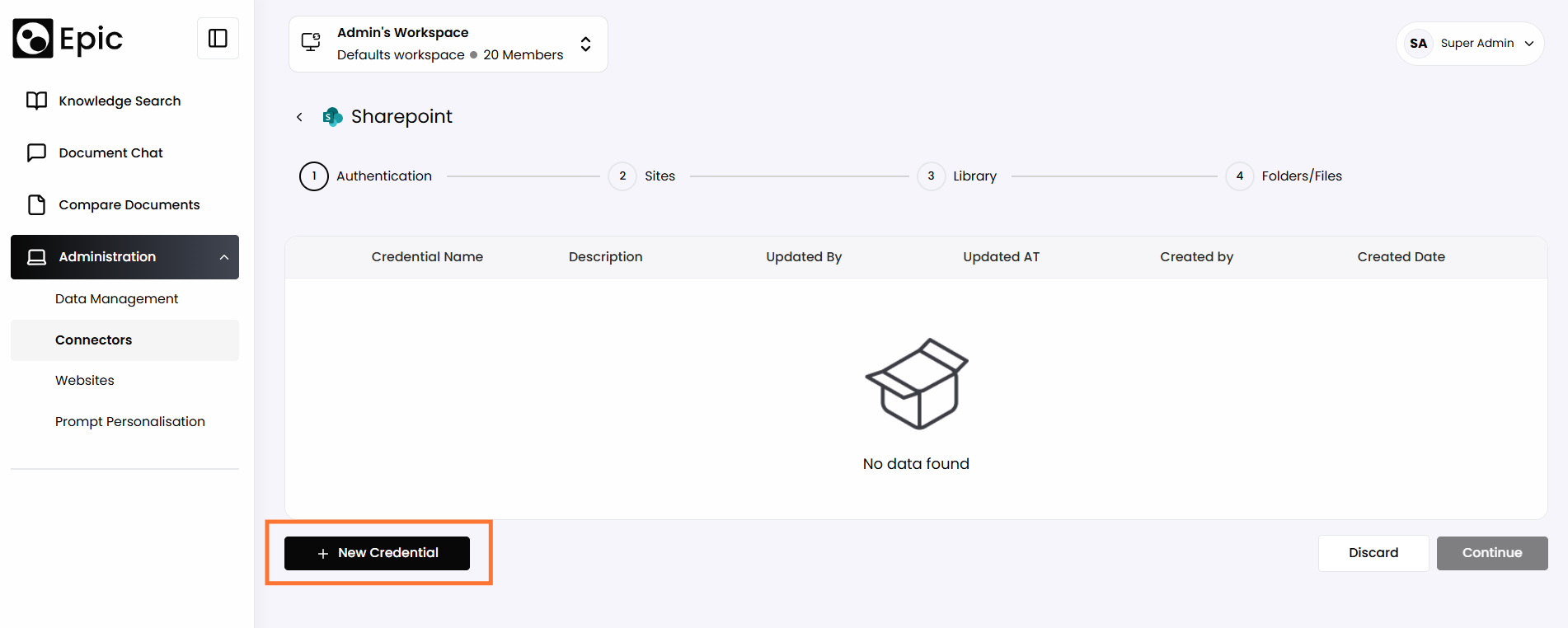
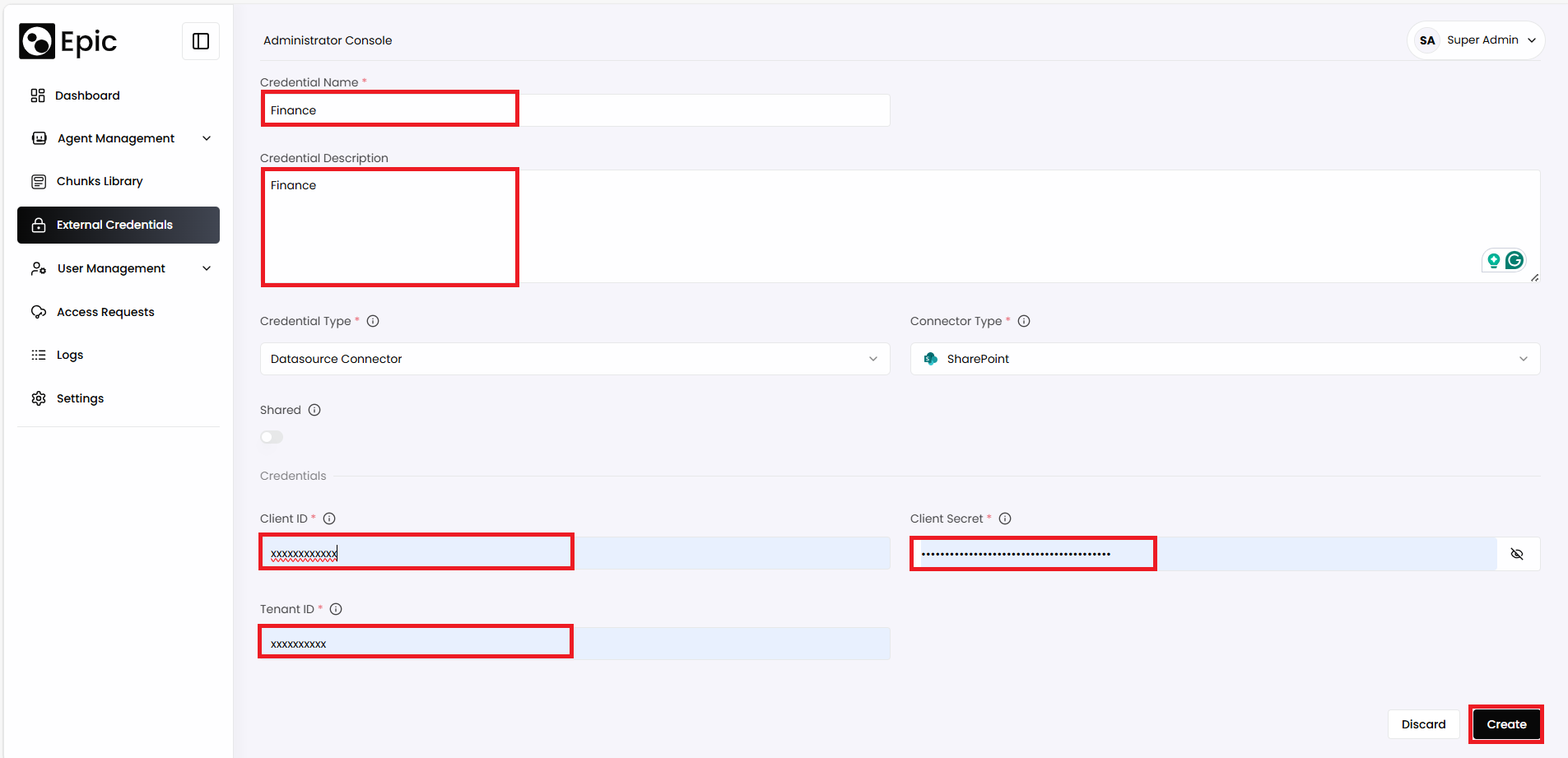
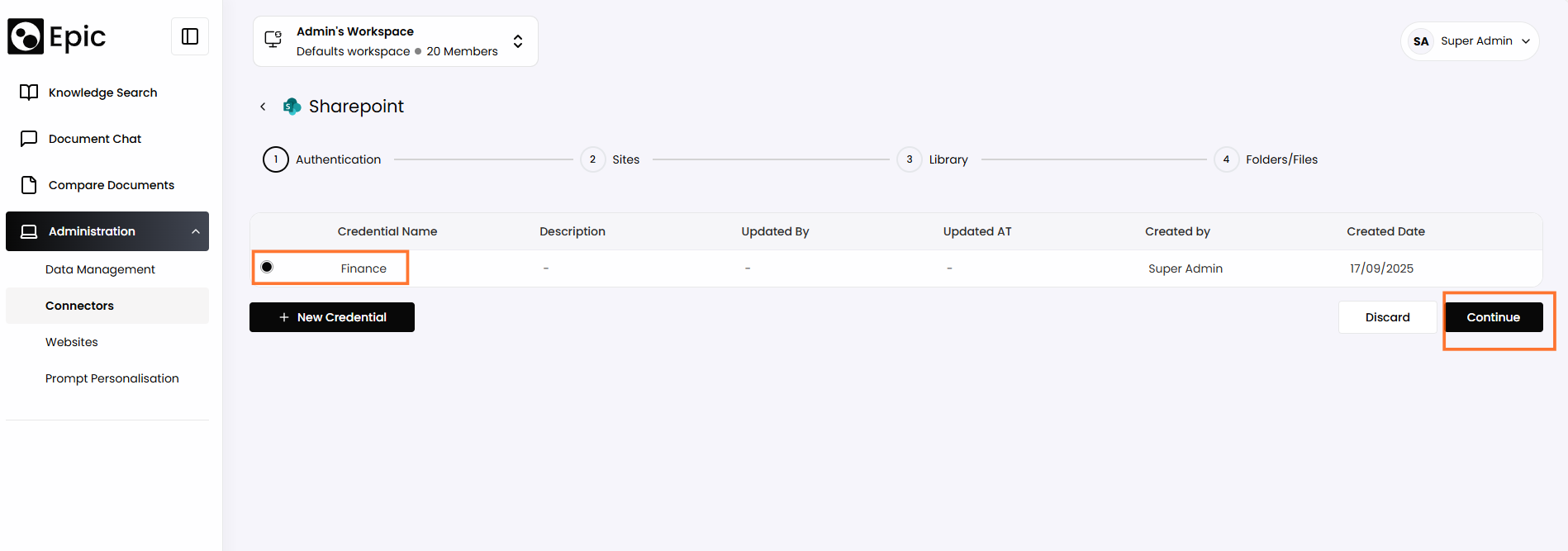
- Provide the required credentials or API keys for the external platform.
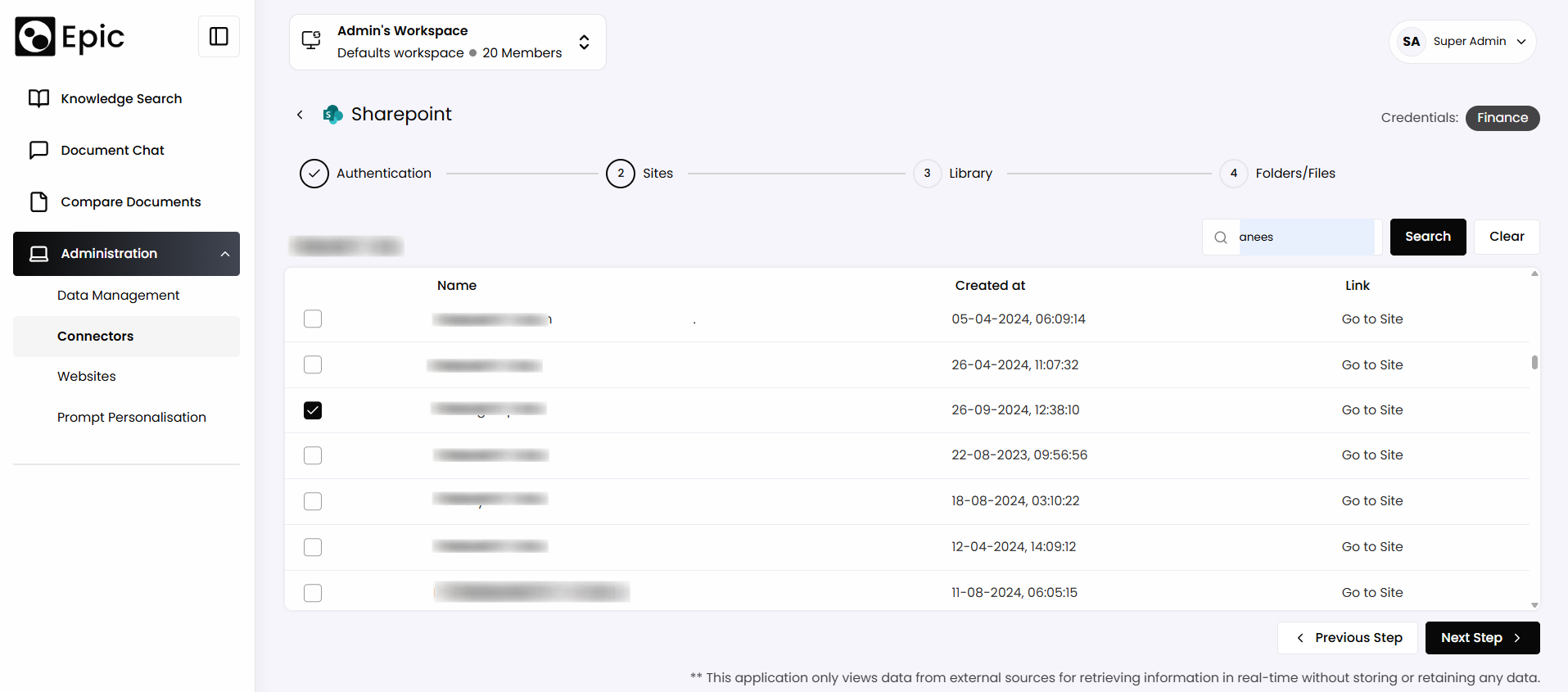
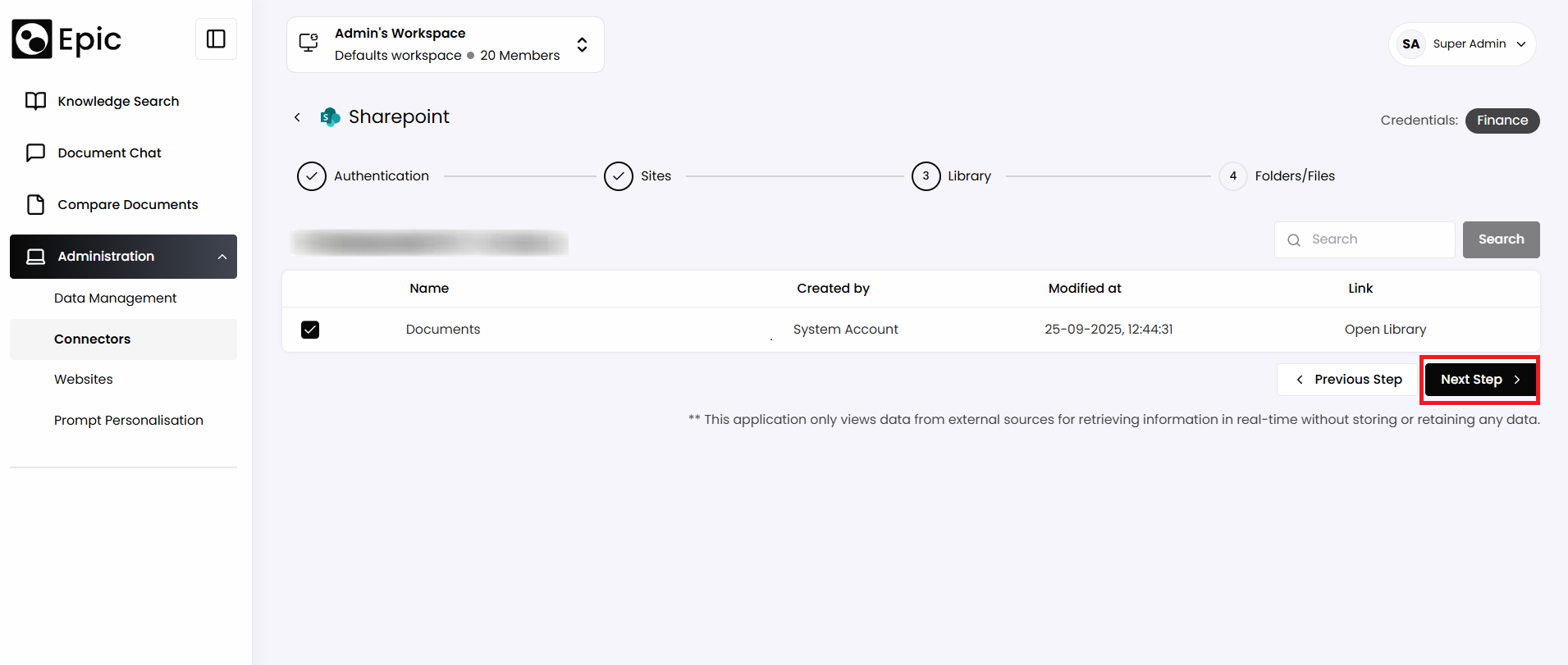
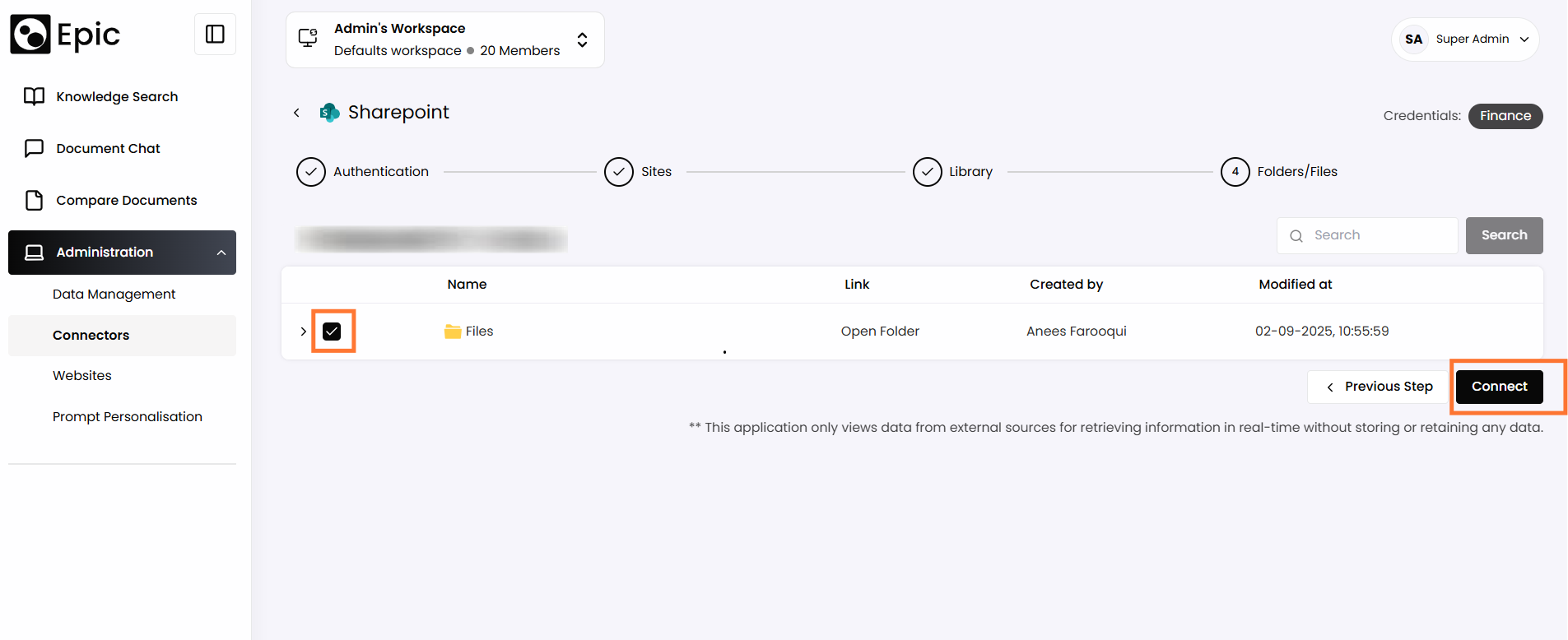
- Select Site, Library, Folder/Files
- Click the Connect button
3. Managing Connectors
The Connectors feature provides tools to manage existing connections effectively.
Actions Available
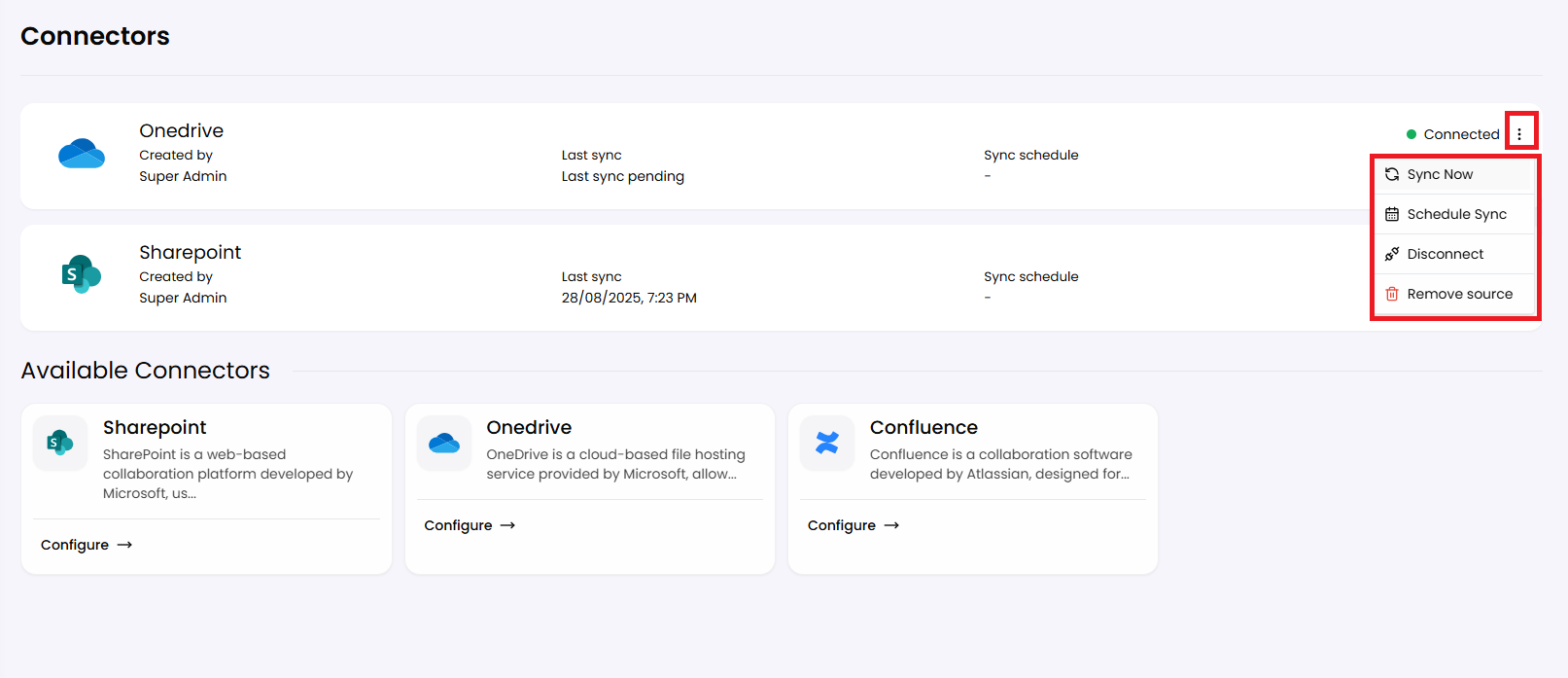
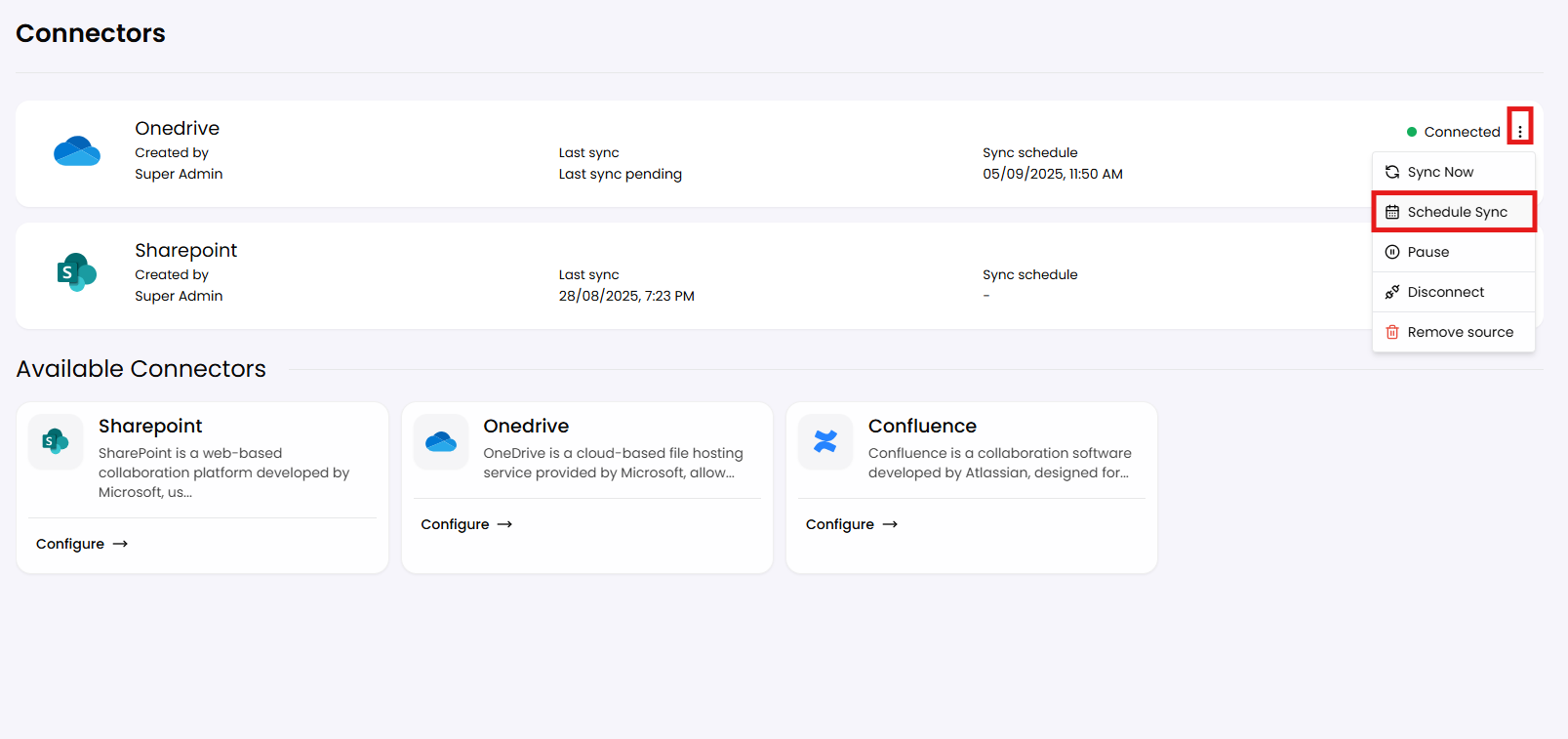
- Sync Now:
Manually trigger a synchronisation to update data from the external source.
- Remove Source:
Delete a specific data source linked to the connector.
- Disconnect:
Disable the connector while retaining its configuration.
- Schedule Sync:
Set up automated sync schedules based on user preferences.
- Pause Sync:
Temporarily halt synchronisation without removing the source.
Sync Selection
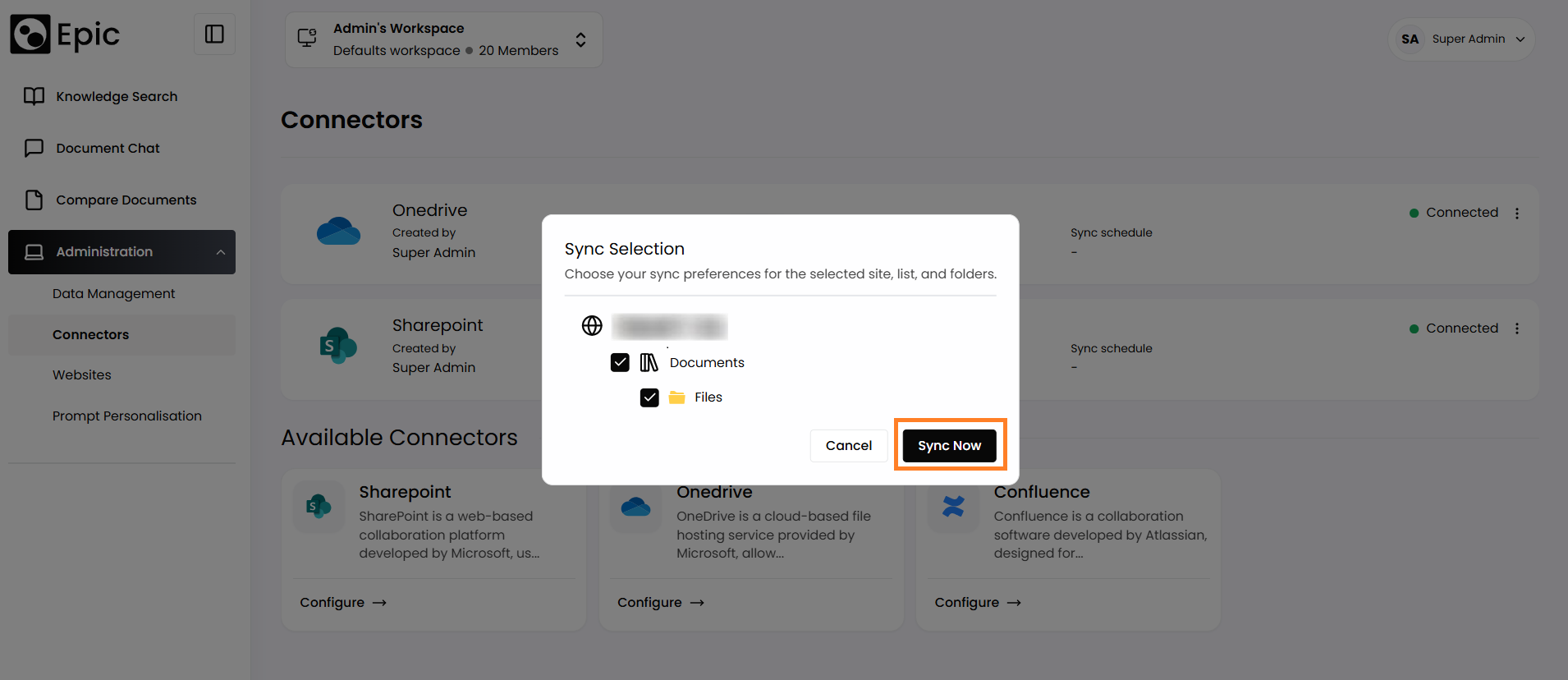
Users can customise their sync preferences for selected sites, lists, and folders:
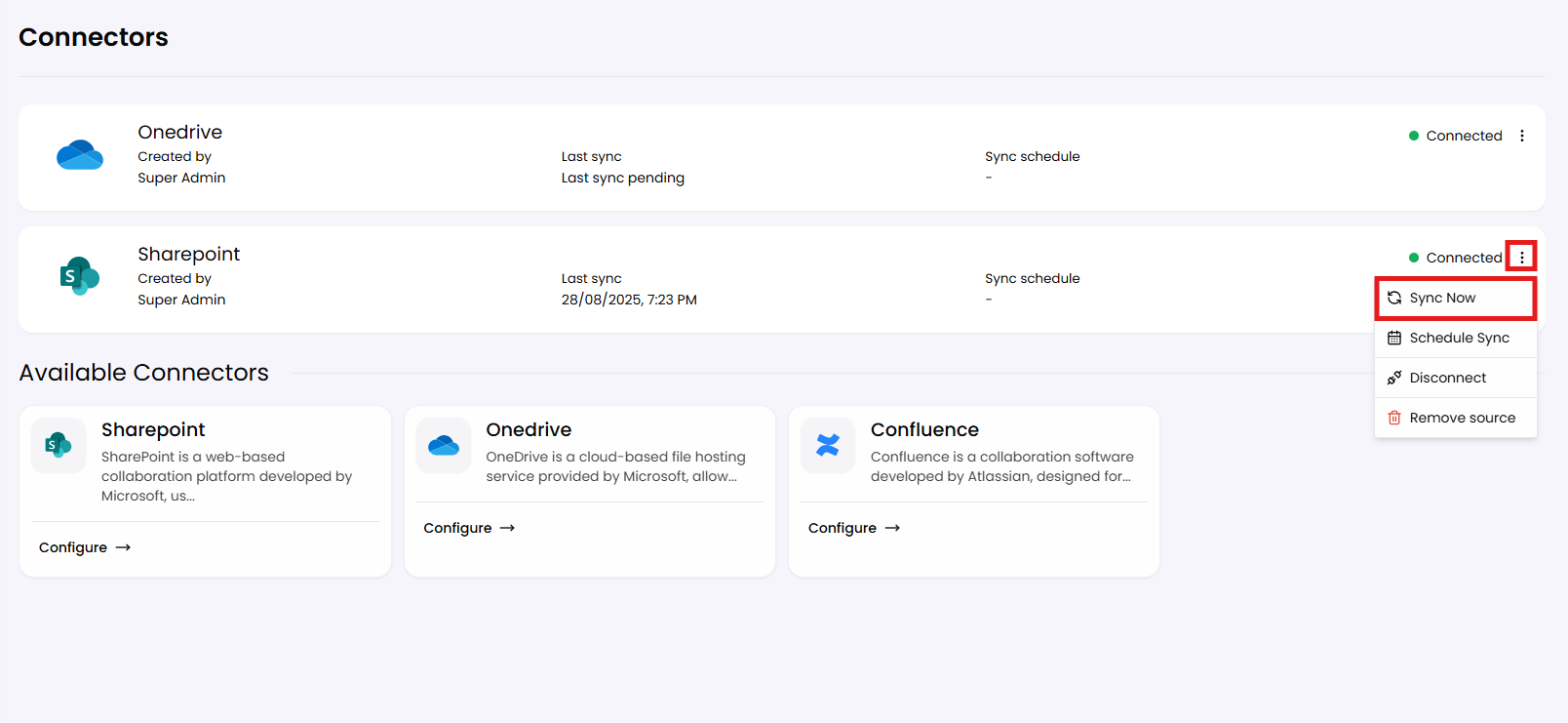
- Click Sync Now for the connector you want to manage.
- A dialog box will appear, allowing you to choose specific groups or document types to sync (e.g., Documents, specific folders).
- Confirm your selection and initiate synchronisation.
Monitoring Synchronisation
- View the last sync time and user activity related to each connector directly from the dashboard.
Scheduling Synchronisation
Users can automate synchronisation using the Schedule Sync feature:
- Click the three-dot menu next to the desired connector.
- Select Schedule Sync from the dropdown menu.
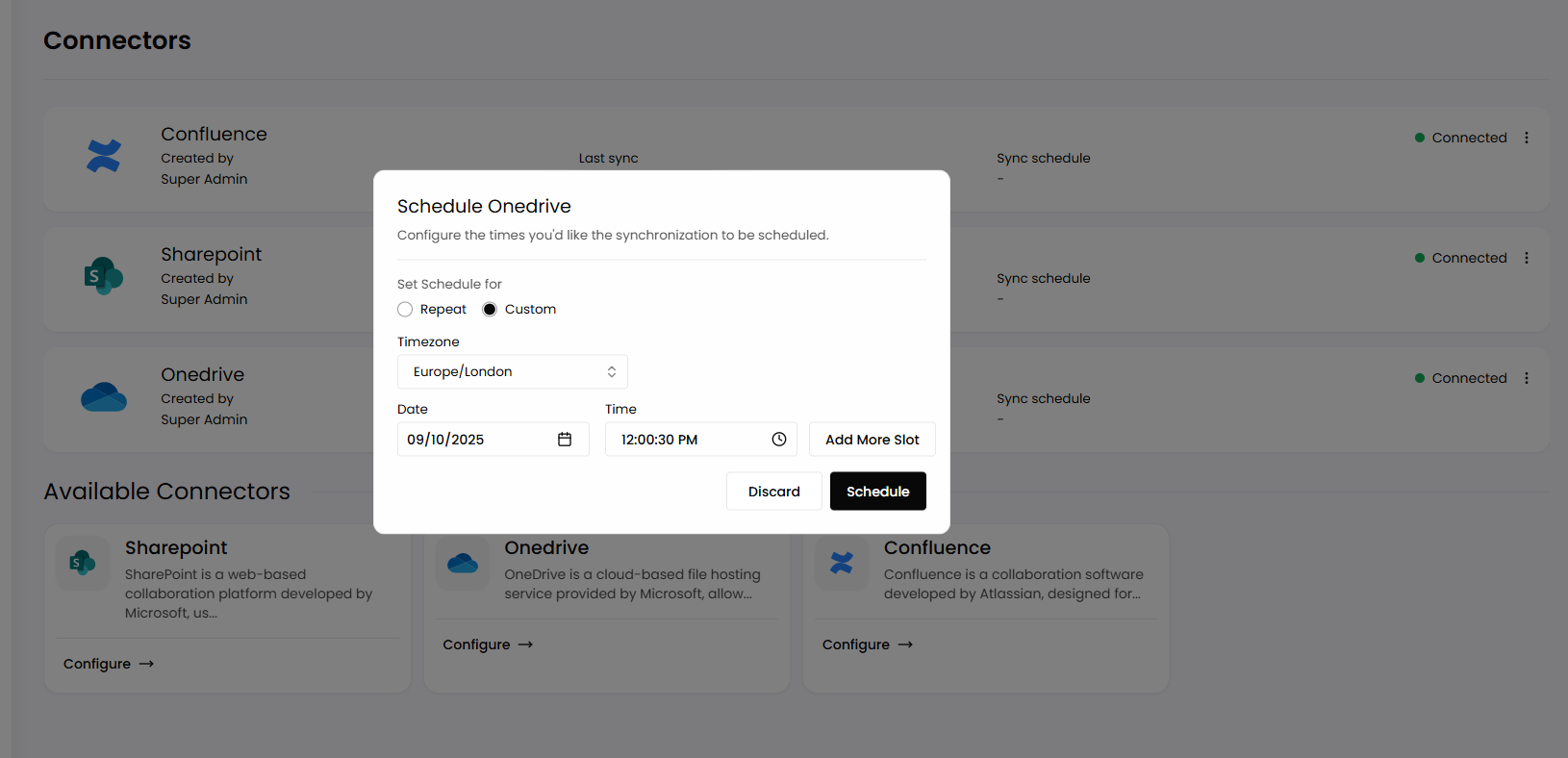
- A scheduling window will appear where users can:
- Set synchronisation to repeat at fixed intervals (e.g., daily at 2:00 PM).
- Select a time zone and configure a custom schedule.
- Click Schedule to confirm the schedule.
- To remove a scheduled sync, click Remove Schedule.
- To discard changes before saving, click Discard.
Available Connectors
- OneDrive: A cloud-based file hosting service provided by Microsoft.
- SharePoint: A web-based collaboration platform developed by Microsoft.
Summary
The Connectors feature in Epic enables seamless integration with various external systems such as OneDrive, SharePoint. This feature enables users to efficiently configure and synchronise data. Users can manage connectors through features like manual sync, source removal, and monitoring sync activity.